
· 123 ToDo Team · Guides & Workflows · 6 min read
What is a PWA? How to Download & Install 123 ToDo on Any Device
Most people have never heard of a Progressive Web App (PWA). Here is what it means in plain English, why you should install 123 ToDo rather than using a browser tab, and simple step-by-step instructions for iPhone, Android, Mac, and Windows.
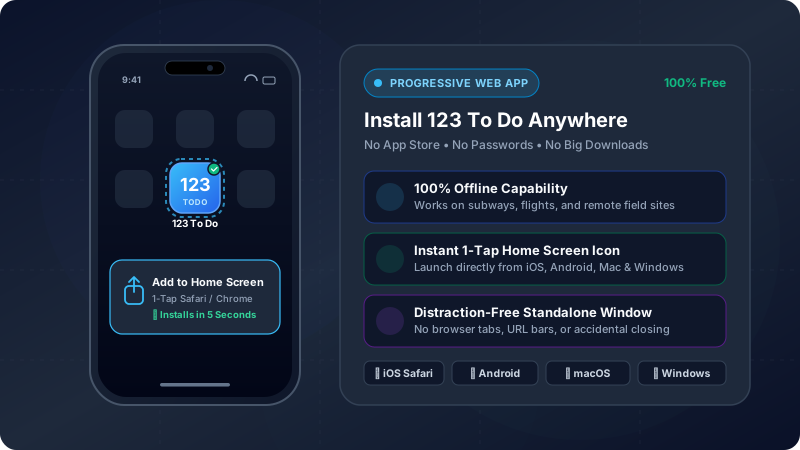
Have you ever wondered why 123 ToDo feels so fast, clean, and responsive? Or why you don’t have to search for it inside Apple’s App Store or Google Play?
The answer is that 123 ToDo is built using modern Progressive Web App (PWA) technology.
If you’ve never come across the term “PWA” before, you’re not alone—most people haven’t! In this simple guide, we’ll explain what a PWA is in plain English, why installing it is vastly superior to keeping a cluttered browser tab open, and exactly how to download and install it on your device in under 10 seconds.
What on Earth is a “PWA”?
Think of a Progressive Web App as the best of both worlds:
- It looks, feels, and works like a native app you downloaded from an app store.
- But it installs instantly and directly from your web browser—with no 300MB downloads, no Apple ID passwords, no app store credit card prompts, and zero tracking.
When you install 123 ToDo on your phone, tablet, or computer, it gets its own dedicated app icon on your Home Screen, Dock, or Start Menu.
When you tap it, it launches in full screen—without browser address bars, tabs, or bookmarks. To you, it feels 100% like a normal app, but with none of the typical app store baggage.
Why You Should Install 123 ToDo (Instead of Leaving a Browser Tab Open)
Many people first discover 123 ToDo in a web browser like Safari, Chrome, or Edge and simply leave the tab open in the background. While that works, installing it onto your device gives you huge advantages:
1. Instant 1-Tap Access from Your Home Screen or Dock
No more opening your browser, sifting through 45 open tabs, or typing in web addresses. Simply tap the 123 ToDo icon right on your phone’s home screen or laptop dock to jump straight into your tasks.
2. Full-Screen, Distraction-Free Focus
When you install 123 ToDo, all browser chrome disappears. There are no address bars, back/forward buttons, or distracting news feeds. You get 100% of your screen dedicated to getting things done.
3. 100% Offline Capability (Anywhere, Anytime)
Going into an underground subway? Flying at 35,000 feet? On a construction site or in a basement with zero cellular reception?
Because 123 ToDo is installed locally on your device, it loads in milliseconds and lets you add tasks, dictate voice notes, and check off checklist steps completely offline. The moment you reconnect to Wi-Fi or cellular data, your encrypted sync seamlessly updates your other devices.
4. Data Protection & Storage Persistence
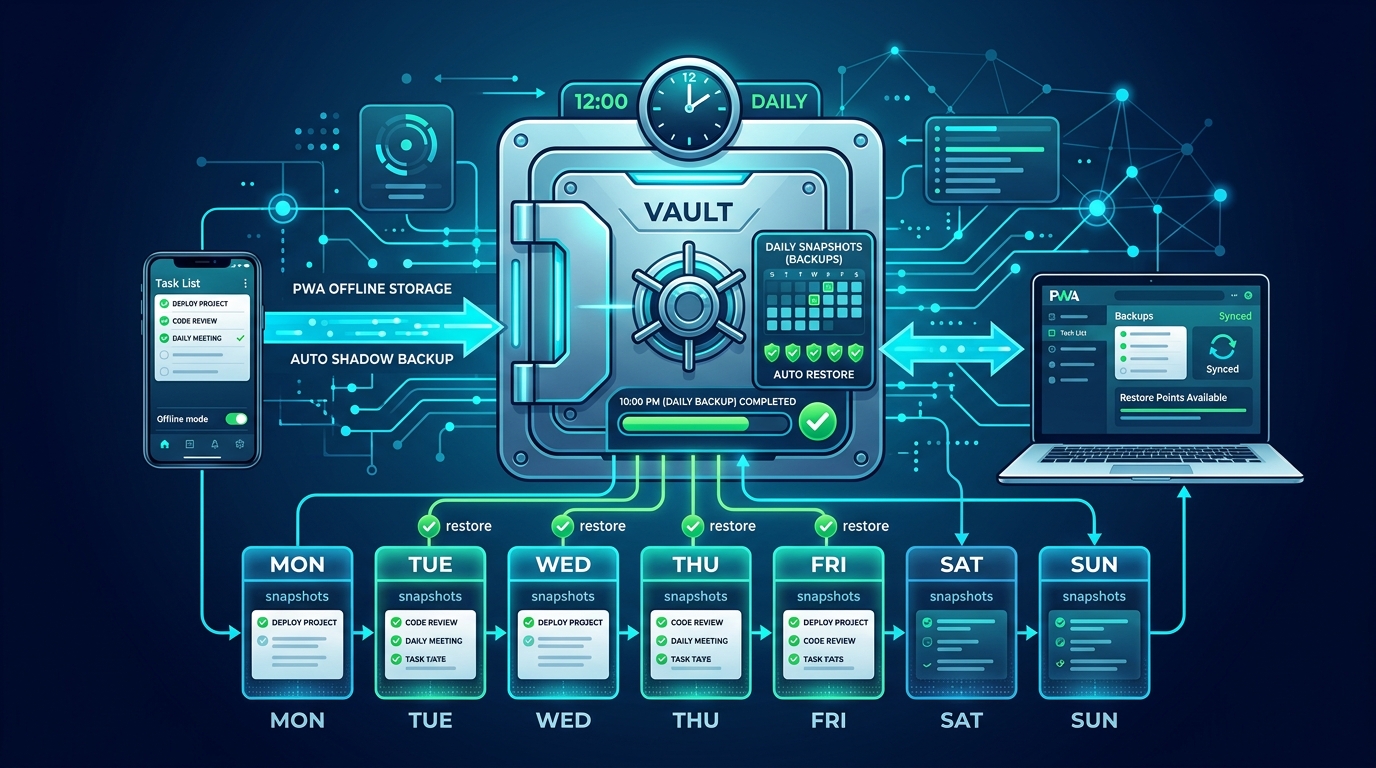
Browsers are known to occasionally wipe website storage if a tab hasn’t been visited for weeks or when device storage runs low. When you install 123 ToDo as a PWA, your operating system grants it Persistent Storage permissions, keeping your tasks, notes, photo attachments, and 24-hour shadow backups safe from automatic browser eviction.
5. Zero App Store Bloat & Instant Background Updates
Traditional to-do apps from app stores often weigh 150MB to 300MB and require manual updates through the App Store. 123 ToDo takes up less than 1MB of space and updates itself silently in the background whenever a new version is released—no waiting, no downloads.
How to Install 123 ToDo on Your Device (Step-by-Step)
Installing 123 ToDo takes less than 10 seconds. Select your device below and follow the simple steps:
iPhone & iPad (Using Safari)
Apple requires adding PWAs through Safari:
- Open app.123todo.com in Safari.
- Tap the Share button at the bottom of your screen (the square icon with an arrow pointing up ⬆️).
- Scroll down the menu and tap “Add to Home Screen” (look for the
+icon). - Tap “Add” in the top right corner.
- That’s it! You will now see the 123 ToDo icon on your home screen. Tap it to launch your new app!
Tip: If you opened the link inside Chrome or another browser on iPhone, tap the share button and choose “Open in Safari” first, then follow the steps above.
Android Phones & Tablets (Using Chrome)
- Open app.123todo.com in Google Chrome.
- Look for the install banner that automatically appears at the top or bottom of the screen, and tap “Install” or “Add to Home Screen”.
- If you don’t see the banner: Tap the three dots menu (⋮) in the top right corner of Chrome.
- Tap “Install app” (or “Add to Home screen”).
- Tap “Install” to confirm.
- Done! 123 ToDo will appear in your app drawer and on your home screen.
Mac (Apple Silicon & Intel)
Option A: Google Chrome / Microsoft Edge / Brave
- Open app.123todo.com in your browser.
- Look at the right side of the address bar at the top (where the URL is).
- Click the Install icon (looks like a small screen with a down arrow, or a
+symbol). - Click “Install”.
- 123 ToDo will open as its own standalone macOS application. Right-click its icon in your Dock and choose Options ➔ Keep in Dock!
Option B: Safari (macOS Sonoma or newer)
- Open app.123todo.com in Safari.
- Click File in the top macOS menu bar.
- Select “Add to Dock…“.
- Click “Add”. The app icon is placed immediately in your Dock for 1-click launching.
Windows PC & Chromebook
- Open app.123todo.com in Google Chrome or Microsoft Edge.
- In the address bar at the top right, click the Install icon (or click the three dots
...➔ Apps ➔ Install 123 To Do). - Click “Install” in the popup confirmation.
- 123 ToDo will open in its own clean window. Check the box to “Pin to taskbar” or “Pin to Start” for instant access every time you start your computer!
How to Check If You Are Running the PWA Version
Not sure if you’re using the website or the installed PWA? Here is how to tell:
- In the PWA: There is no browser address bar (
https://...), no tab bar with other websites, and no browser back/forward buttons. The app runs edge-to-edge in its own clean window. - In Settings: Open Settings ⚙️ inside 123 ToDo and check the Appearance tab. If installed, you’ll see a green badge: “PWA Installed: Running in Standalone Mode”.
Summary: A Faster, Simpler Way to Manage Your Day
You don’t need to put up with slow app stores, bloated software downloads, or monthly subscription paywalls just to keep track of your daily tasks and voice notes.
By installing 123 ToDo as a Progressive Web App, you get:
- Instant 1-tap launching from your home screen or dock
- Distraction-free focus with zero browser clutter
- 100% offline reliability wherever life takes you
- Total privacy with local storage and zero-knowledge encryption
Open app.123todo.com right now, tap “Add to Home Screen” or “Install”, and experience the future of lightweight, private productivity!