Documentation & User Manual
User Guide
Everything you need to master 123 ToDo — from continuous voice dictation and scheduled timelines to zero-knowledge cloud sync and rapid keyboard shortcuts.
User Guide Contents
Jump directly to any section below for step-by-step guidance, workflows, and troubleshooting.
Getting Started & Tasks
Core EssentialsDictation & Workflows
Speed & ActionsSync & Data Safety
Security & BackupSettings & Support
Power Tools & HelpGetting Started with 123 ToDo
Get up and running in under 60 seconds
Step 1: Open the App
Visit app.123todo.com in any modern web browser. No download or installation required to start.
Step 2: Add Your First Task
Click the "Add Task" button at the top of any priority section. Type your task (up to 250 characters by default, or set to Unlimited in Settings) and select a priority level.
Step 3: Organize and Complete
Drag tasks to reorder them within priorities. Click the checkbox to mark tasks complete. That's it - you're managing tasks!
Step 4: Install as PWA (Recommended)
For the best mobile experience, install 123 ToDo as a Progressive Web App. This ensures **Persistent Storage** so your tasks are never cleared by the OS.
Step 5: Enable Cloud Sync (Recommended)
Want to sync across your phone and computer? Enable **Set & Forget Cloud Sync** (or Google Drive Sync) to seamlessly sync your tasks across devices using AES-256 encrypted storage.
Features Deep Dive
Master every feature of 123 ToDo
Dual Skins: Task Manager vs. Simple Voice Notes
123 ToDo features a 1-tap skin switcher at the top of the header bar: [ Tasks | Voice Notes ].
- Task Manager Mode: Full 4-level priority matrix (P1 Must Do, P2 Should Do, P3 Could Do, P4 On Hold) with subtask checklists, due dates, custom project tabs, and attached notes.
- Simple Voice Notes Mode: Extra-large text view tailored for field work, builders, contractors, and on-site note taking. Allows rapid hands-free dictation into an Unassigned Inbox.
- Unified Note/Task Model: Every note added via the Notes view is stored directly as a Task in 123 ToDo's unified data system. The entry content forms the task item in your Unassigned Inbox, allowing you to easily assign projects, attach additional notes, create subtask checklists, set due dates, or assign priority levels (P1–P4) whenever you choose to triage your list.
Priority System & Collapsible Sections
123 ToDo uses a 4-level priority system to help you focus on what matters most, complete with instant expand/contract toggles on each priority section for an uncluttered view:
- Must Do (Priority 1) - Critical tasks that must be completed today. These appear in red.
- Should Do (Priority 2) - Important tasks that should be done soon. These appear in orange.
- Could Do (Priority 3) - Nice-to-have tasks with no urgent deadline. These appear in gray.
- On Hold (Priority 4) - Tasks that are paused or waiting on something else. These appear in purple.
Pro Tip: Click the chevron icon next to any priority section title to collapse sections you aren't currently working on. Your preferred collapse state is saved automatically.
Adding and Editing Tasks
To add a new task:
- Click the Add Task button in the top header or at the top of your priority lists
- Type your task title (up to 250 characters by default, or set to Unlimited in Settings)
- Optionally add notes, due dates, subtasks, or assign a project category
- Select the priority level using the priority buttons (Must Do, Should Do, Could Do, On Hold)
- Click Add Task (or press
Enter) to save
To edit an existing task:
- Click the pencil icon next to any task (or click directly on the task text) to open the Edit Modal
- Modify the title, attached notes, priority level, project category, or checklist subtasks
- Click Update Task (or press
Enter) to save your changes
Task Description Character Limit & Unlimited Mode
By default, 123 ToDo uses a 250-character limit for task titles to encourage concise, punchy to-dos that keep your daily dashboard uncluttered and scannable at a glance. However, if you need more room, you can easily customize or remove this limit entirely:
Increasing to Unlimited Length:
Need to paste extensive specifications, client requirements, or longer task instructions? Simply open Settings ➔ Appearance & General Preferences ➔ Task Description Character Limit and choose Unlimited. This completely removes the character ceiling!
Unlimited Task Notes & Details:
Remember that the secondary Task Notes field is always 100% Unlimited with zero length restrictions by design. You can attach paragraphs of context, addresses, meeting transcripts, links, and photos without affecting your task headline.
One-Click Timestamped Notes & Activity Logs:
Record progressive updates, client conversations, and supplier call logs directly on a task over time. In Task Edit mode, tap + Timestamp in the Notes header (or full-screen focus editor). 123 ToDo instantly inserts the current date and time (e.g. [11 Sep 2026, 19:05]) and focuses your cursor so you can type or voice-dictate a running journal without clunky multi-note bloat.
Evidentiary Creation Timestamps:
Know exactly when every task or note was created. In Task Edit mode, the original creation date and time stamp is permanently visible at the bottom of the modal (e.g. Created: 11 Sep 2026, 18:57:22), giving you a tamper-resistant evidentiary record of when work was first logged.
Actionable Phone Numbers, Email Links & Email Service Picker
Tasks and notes often contain contact information. 123 ToDo automatically detects telephone numbers and email addresses, transforming them into instant clickable actions across desktop and mobile:
One-Tap Telephone Dialing:
Any valid UK or international phone number in a task or note becomes a clickable tel: link. On mobile devices, tapping it opens your phone dialer instantly. On desktop, it triggers FaceTime or your system calling app.
Preferred Email Service Picker:
Clicking an email address prompts you once to pick your favorite service: Default Mail App (Apple Mail, Outlook Desktop, Thunderbird), Gmail Web, Outlook / Microsoft 365 Web, or Yahoo Mail. 123 ToDo remembers your choice so future clicks open compose directly. You can modify or reset your preference anytime in Settings ➔ Preferred Email Service.
Voice-to-Text & Spoken Commands Guide
Capture tasks 5x faster using continuous voice dictation with automatic spoken punctuation, live editing, and hands-free task submission!
Spoken Punctuation
full stop/period/dot➔ .comma➔ ,question mark➔ ?exclamation mark➔ !colon/semi colon➔ : / ;new line➔ Inserts line break (auto-capitalizes next sentence)
Spoken Edits & Auto-Submit
delete last word/scratch that➔ Remakes last phrasedelete last N words➔ Deletes specified word countclear all➔ Resets entire transcript inputadd task/add note/save task➔ Saves task or note hands-free!
Live Auto-Scroll Viewport: As you dictate long task titles or notes, the canvas automatically expands and scrolls down so your latest spoken words remain 100% visible at the bottom.
Photo & Screenshot Attachments in Notes
Attach up to 3 photos per note or task! Engineered for rapid field work on mobile and instant screenshot pasting on desktop with 100% free offline storage.
On Mobile (iPhone & Android)
- Camera Button: Launches your device camera directly to snap on-site conditions, receipts, or job status.
- Attach Button: Browse and upload existing photos from your camera roll or photo library.
- Instant Thumbnails: View lightweight preview thumbnails with file sizes and 1-tap delete controls.
On Desktop (Mac, Windows, Linux)
- Direct Clipboard Paste: Grab a screenshot (
Cmd+Shift+4orWin+Shift+S) and press Cmd+V / Ctrl+V inside the note! - Drag-and-Drop: Drag image files directly from your file manager into the note area.
- Full-Screen Lightbox: Click any thumbnail to open the Lightbox with 2.0x zoom and instant download.
Smart WebP Compression & IndexedDB: Photos are automatically compressed client-side (max 2048px, ~150KB–250KB) to preserve razor-sharp receipt text while keeping storage lean and offline-ready in IndexedDB.
Completing Tasks
Click the checkbox next to any task to mark it complete. Completed tasks move to the Archive section at the bottom of the page. You can restore archived tasks anytime by clicking the restore icon.
Reordering & Moving Tasks
Tasks can be sorted and moved using intuitive drag and drop mechanics:
- Sort within a list: Click and hold any task, then drag it up or down in the same section to reorder it.
- Move across priorities: Drag a task to a different priority section. Dropping it on another task will assign it to that priority and position it there.
- Drop at the very top: Drag a task directly onto the section header or empty area of a priority list to place it at the absolute top (a dashed border will highlight the active drop zone).
Deleting Tasks
To permanently delete a task, click the trash icon. You'll see a confirmation prompt. Deleted tasks cannot be recovered.
Archive System
Completed tasks are automatically moved to the Archive section at the bottom of the page. The archive shows:
- All completed tasks with their original priority colors
- Completion timestamps
- Options to restore (move back to active) or permanently delete
Subtasks & Checklists
For large or complex tasks, you can break them down into smaller, manageable steps:
- Create Checklists: Inside the Add Task or Edit Task interface, click the Subtasks button to create a checklist of sub-steps.
- Check Off Steps in the Edit Modal: To keep your dashboard clean and uncluttered, individual subtask steps are shown only inside the Edit Modal. Simply tap/click a task to open it and check off steps, add new ones, or remove completed items.
- Progress Bar Tracking: Task cards display a visual progress bar and percentage showing how close the main task is to completion (e.g.,
Steps: 1/3 (33%)). - Anti-Procrastination Nudges: If you defer/reschedule an active task to the future more than twice, the edit modal will gently alert you and suggest breaking it down into subtasks.
Scheduled & Recurring Tasks
Manage upcoming work, precise daily timelines, and recurring routines without cluttering your daily view:
- Specific Date & Time Scheduling: Set a future date and optional exact time on any task. When scheduling with a time, pick hours and minutes effortlessly using the intuitive circular clock face dial.
- Chronological Daily Timeline & Time Badges: Tasks with scheduled times automatically sort in chronological order and display a concise time badge (e.g.
09:00,2:30 PM) at the start of the task, transforming your priority list into an effortless daily agenda. - Google Calendar & Apple Calendar Integration: Seamless 1-click “Add to Google Calendar” and “Add to Apple Calendar” (.ics) export buttons pre-configure calendar events and reminders in your favorite calendar app.
- Automated Reminders & Due Task Priority: Automated in-app and PWA reminder alerts notify you when scheduled tasks fall due. When a task reaches its scheduled day, it is automatically placed at the top of its priority list while fully respecting custom drag-and-drop reordering.
- Scheduled Tasks Drawer: Located between On Hold and Archive at the bottom, this full-width collapsible drawer keeps future tasks organized and out of sight. Tasks due today appear in active priority lists, keeping your dashboard focused.
- Detailed Recurrence Rules: Set tasks to repeat at custom intervals — such as every 3 days, every 2 weeks, every Monday, or every 3 months. Toggle recurrence instantly via the Repeat icon toggle directly on the schedule row.
- Automatic Cycle Rollover: When you complete a recurring task, the current instance is archived, and the next occurrence is automatically generated in the Scheduled drawer, resetting its subtasks checklist for the new cycle.
Productivity Achievements & 10-Tier Mastery Hub
Stay motivated with 123 ToDo's built-in gamification engine! Tap the Trophy Icon in the top header to open your personal Productivity & Achievements Modal:
- Productivity Points Engine: Earn points naturally as you get things done (+10 pts per task completed, +2 pts per checklist subtask checked, +15 pts per active streak day).
- 10 Progressive Achievement Tiers: Advance from Level 1: Focused Starter to the elite pinnacle Level 10: 123 Immortal (50,000+ points).
- Daily Focus Streaks: Build unbreakable compounding habits by maintaining an active consecutive daily completion streak.
- 1-2-3 Balance Analytics: Visualise your execution balance across Must-Do (P1), Should-Do (P2), and Could-Do (P3) tasks.
- Unlockable Milestone Badges: Unlock badges for First Step, Hat Trick, On Fire, 1-2-3 Virtuoso, Subtask Slayer, Century Club, and Voice Pioneer.
Read our complete guide on Productivity Streaks, Dopamine & 10-Tier Milestones →
Universal Multi-Competitor Data Import & Migration
One-Click Migration from Todoist, TickTick, Google Keep, Google Tasks & MS To Do
Migrating your tasks, notes, checklists, and projects to 123 ToDo is quick, seamless, and safe. Our Universal Importer Wizard parses exported backup files from all major task & note apps:
STEP 1 Export Files from Your Current App
- Todoist: Open a Project ➔ Click
(...)menu ➔ Select Export as CSV. - TickTick: Open Settings ➔ Go to Backup & Export ➔ Click Export Backup CSV.
- Google Keep: Visit
takeout.google.com➔ Select Keep ➔ Click Create Export (downloads JSON note files). - Google Tasks: Visit
takeout.google.com➔ Select Tasks ➔ Click Create Export (downloadsTasks.json). - Microsoft To Do: Open Outlook/To Do Settings ➔ Select Export Account Data CSV.
STEP 2 Open the 123 ToDo Universal Importer
- Open app.123todo.com and click the Import button in the footer.
- Select Import from Other Apps from the selection modal.
- Select your source app tab and drag & drop your .csv or .json files into the upload dropzone (or select multiple files at once).
STEP 3 Map Projects & Confirm Import
123 ToDo automatically parses your files, detects task titles, note descriptions, priority levels, due dates, and checklist items. Choose whether to assign tasks to existing projects or create brand new color-coded projects automatically!
What Gets Migrated & Preserved (Zero Text Truncation Guarantee):
- ✓ Unlimited Text Capacity: Task titles, body descriptions, & note text of any length are imported in full.
- ✓ No Truncation on Edit: Notes & details are never capped or cut off when editing tasks later.
- ✓ Priorities & Due Dates: Mapped cleanly to P1-P4 priority matrix and date schedules.
- ✓ Subtasks & Checklists: Imported as interactive checklists and indented subtask trees.
Exporting Your Data Out of 123 ToDo (Zero Lock-In Guarantee)
123 ToDo guarantees 100% data portability and user ownership. You are never trapped in our ecosystem. You can export your complete workspace dataset out of 123 ToDo at any time:
- Open 123 ToDo and click Settings (or Export in the footer bar).
- Click Export Backup Data.
- Save the resulting
.jsonfile to your device.
Your backup contains all task headlines, subtask checklists, notes, project categories, priority levels (P1–P4), and scheduled due dates in structured JSON format ready for archiving or migrating to other apps.
Importing 123 ToDo Backups & Shadow Snapshots:
- Click the "Import" button in the footer
- Select "123 ToDo Backup" or "Restore Shadow Backup"
- Choose your previously saved JSON file or daily automated local snapshot
Important: Importing data will merge your imported items into your current task workspace safely.
Cross-Device Cloud Sync
123 ToDo features a powerful, friction-free synchronization system that lets you access your tasks across all your devices (iPhones, Android phones, tablets, laptops, and desktop computers):
- Set & Forget Cloud Sync (Recommended): Powered by Cloudflare D1 Serverless edge database. Sign in once with a passphrase (or pair a second device with a 6-digit code) and stay connected seamlessly. Zero 1-hour OAuth drops and 100% iPhone Safari/PWA compatible.
- Zero-Knowledge E2E Encryption: Your tasks, projects, notes, and subtasks are encrypted with military-grade AES-256-GCM using your personal passphrase before leaving your device. Neither cloud providers nor third parties can read your data.
- 5-Second 6-Digit Device Pairing: Easily link a second device (like an iPhone to a Mac) by generating a temporary 6-digit pairing code in Settings ➔ Cloud Sync.
- Google Drive AppData (Optional Provider): For privacy purists who prefer storing sync data on their personal Google account, Google Drive AppData remains fully supported under Settings ➔ Cloud Sync.
- Visual Status: The header sync indicator dot glows steady green when connected and synced, keeping you informed without distraction.
Automated Version Updates & Instant Service Worker Sync
123 ToDo automatically checks for and applies new releases in the background via modern service workers. When an update is deployed, it activates silently without disruptive prompts or reload banners:
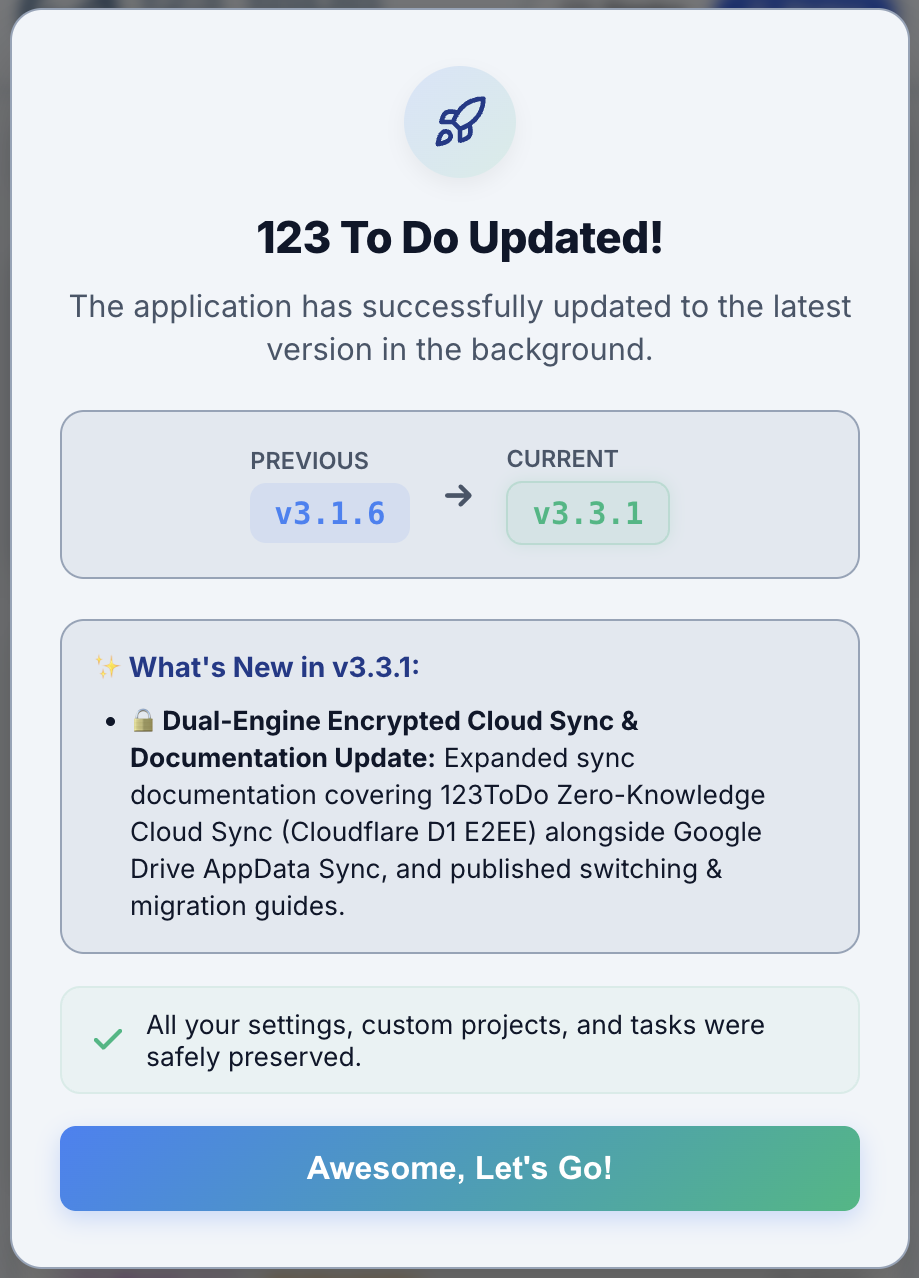
Your active session remains completely uninterrupted with zero data loss. You always have immediate access to the latest features, security patches, and performance optimizations.
Built-In Resilience & Automatic Shadow Backups
123 ToDo is engineered with an enterprise-grade local resilience stack so you never lose work:
- Instant Synchronous Writes: Unlike apps that buffer changes in volatile memory, 123 ToDo commits every keystroke, checkbox tap, note edit, and reorder synchronously to physical local storage the millisecond you take action.
- Dual-Tier Photo Attachment Architecture: High-resolution original photos are saved to your browser's dedicated IndexedDB store (
123TodoPhotoDB), while attachment metadata and compact visual thumbnails (~160px WebP) are stored in LocalStorage and your shadow backups. This deliberate architecture bypasses the strict 5MB LocalStorage quota limit that causes silent save failures in lesser web apps. - Automatic 24-Hour Shadow Snapshots: Every 24 hours, the app takes an autonomous internal snapshot of your entire workspace (active tasks, archive, projects, subtasks, notes, and photo thumbnails). If you ever make an accidental mass deletion or wipe, you can roll back to your last known good state with one click in Settings ➔ Backup & Restore.
- Immunity to Browser & OS Updates: When Chrome, Safari, Edge, or your operating system updates silently in the background, only application binaries are touched. Your browser user data profile (housing LocalStorage and IndexedDB) is 100% preserved.
- Persistent Storage API: 123 ToDo requests persistent storage permissions (
navigator.storage.persist()), preventing the browser from evicting your data during low-disk-space maintenance sweeps.
Progressive Web App (PWA) Installation
On Desktop (Chrome, Edge, Brave):
- Visit app.123todo.com
- Click the install icon in the address bar (computer with down arrow)
- Click "Install" in the popup
- The app will open in its own window
On iPhone/iPad (Safari):
- Visit app.123todo.com in Safari
- Tap the Share button (square with up arrow)
- Scroll down and tap "Add to Home Screen"
- Tap "Add" to confirm
On Android (Chrome):
- Visit app.123todo.com in Chrome
- Tap the three-dot menu
- Tap "Add to Home screen"
- Tap "Add" to confirm
Data Backup Reminders
123 ToDo will remind you weekly to backup your data. Since all tasks are stored locally in your browser, regular backups are essential to prevent data loss.
Theme & Visual Appearance Options
123 ToDo automatically adapts to your device's light or dark mode preference, but you can also tailor the visual experience to your personal comfort:
- 3 Calibrated Light Mode Tones: In Settings ➔ Appearance & Styling, choose between:
- Bright Tone: Crisp, pure white standard appearance.
- Soft Tone: Soft warm light grey engineered for reduced eye fatigue during long desk sessions.
- Muted Tone: Subdued cozy grey with zero screen glare.
- High-Contrast Dark Mode: Rich, low-light dark palette optimized for evening planning and battery efficiency on OLED displays.
- Feature Buttons & Labels Mode: In Settings ➔ Appearance & Styling, choose how toolbar buttons appear: Icons (Clean) with ample spacing and minimal clutter, Icons & Text for full descriptive labels, or Text Only.
- Adaptive Screen Scaling for Compact Phones: 123 ToDo automatically detects smaller viewports (e.g. iPhone SE or displays ≤375px wide) to adjust typography, margins, and touch targets. Override or customize anytime in Settings ➔ Appearance & Styling ➔ Screen Scaling Mode (Auto, Compact, Standard).
- Scheduled Times & Creation Timestamps: In Settings ➔ Tasks & Workflow, toggle time scheduling selectors and creation timestamps to keep your editing modals as lean or as detailed as you like.
Wide-Screen Layout & Project Columns (Kanban View)
On larger screens (tablets, laptops, desktops), 123 ToDo offers flexible layout options:
- Priority Columns View: Displays your 3 main priorities (Must Do, Should Do, Could Do) side-by-side as responsive vertical lists.
- Project Columns View: Under Settings ➔ Layout & Views, switch your wide view from Priorities to Projects! This turns 123 ToDo into a horizontal Kanban board where each project category (e.g. Work, Home, Personal) gets its own dedicated column with full horizontal scrolling.
- Date Format Selection: Choose your preferred date formatting under Settings: UK / International (
DD/MM/YYYY) or US (MM/DD/YYYY).
Mobile Touch & Swipe Gestures
Manage your tasks rapidly on mobile phones and tablets with customizable swipe gestures:
- Swipe Right: Default triggers instant task completion and archiving with haptic feedback.
- Swipe Left: Default opens task deletion or quick priority reassignment.
- Customizable Actions: In Settings ➔ Swipe Actions, customize what left and right swipes do (Complete, Priority Flag, On Hold Pause, Edit, or None), or disable swiping if you prefer pure tap interactions.
Keyboard Shortcuts
Accelerate your workflow with these quick keyboard shortcuts (automatically disabled when typing inside input fields):
aorq: Toggle open/close the "Add Task" panel./: Toggle and focus the search bar instantly.s: Open the Settings modal.Esc: Close any open modal, clear active selections, or collapse panels.Enter: Save/submit your task while typing in the description textarea.Shift + Enter: Insert a new line break inside a task's description without submitting it.
Tips & Tricks
Pro tips for maximum productivity
Get more done with these expert techniques
Start Each Day with Must Do
Limit your Must Do list to 3-5 critical tasks. This keeps you focused and prevents overwhelm.
Use On Hold for Waiting Tasks
Move tasks to On Hold when waiting for others or external factors. Keeps active lists clean.
Weekly Reviews
Every Sunday, review Could Do tasks. Promote important ones or delete tasks you'll never do.
Archive Review
Periodically review your archive to see progress. Permanently delete old completed tasks to declutter.
Regular Backups
Export your data weekly. Set a reminder or do it every Friday. Store backups in cloud storage.
Break Down Big Tasks
Large projects? Break them into smaller, actionable tasks. "Launch website" becomes 5 specific tasks.
FAQ
Frequently Asked Questions
Common questions about using 123 ToDo
Where is my data stored?
All your tasks are stored locally in your browser's localStorage. Nothing is sent to our servers. Your data stays on your device.
My devices are signed in but not syncing. What do I do?
Because of how zero-knowledge encryption works, if one device encrypts data with a new key and another device gets out of sync with the session, it may appear stuck. To fix this, simply tap the sync button on both devices to **Sign Out**, and then sign back in on both devices using the exact same Google account and passphrase. This forces a fresh connection and will resume syncing immediately.
Can I sync between devices?
YES! We offer **Set & Forget Cloud Sync** (powered by Cloudflare D1 serverless edge database) as well as **Google Drive Sync**. Both features use AES-256-GCM zero-knowledge encryption, meaning your tasks and notes are encrypted with your personal passphrase before leaving your device.
How does Set & Forget Cloud Sync solve iPhone/iPad PWA login drops?
Unlike traditional Google Drive OAuth logins that expire every hour in iOS PWAs, **Set & Forget Cloud Sync** uses a persistent, encrypted session key and instant 5-second 6-digit device pairing codes. You pair your iPhone once and stay connected seamlessly with zero re-login prompts!
Will I lose my work if Chrome, Safari, or my OS updates silently in the background?
**No.** Every action you take in 123 ToDo is written **synchronously and immediately** to physical local storage—there is no waiting for an end-of-day batch save. When Google Chrome, Apple Safari, Microsoft Edge, or your operating system updates silently, only the browser’s application executable is replaced. Your personal user profile directory—which contains your LocalStorage, IndexedDB databases, and PWA containers—remains completely intact and untouched.
Are photo attachments included in the automatic 24-hour shadow backup?
**Yes.** 123 ToDo uses an intelligent dual-tier storage architecture: original full-resolution photos are saved into a dedicated browser **IndexedDB** database (`123TodoPhotoDB`), while all task/note records, photo metadata, and **compact visual thumbnails (~160px WebP)** are saved directly into your 24-hour Shadow Backup. This prevents hitting the browser’s strict 5MB `localStorage` limit (which causes save crashes in other web apps) while guaranteeing your tasks and photos remain protected and visible.
Is my data safe on mobile?
Yes! 123 ToDo activates the **HTML5 Persistent Storage API** (`navigator.storage.persist()`) on mobile and desktop devices. When granted, the browser is instructed never to evict your local database during automated cleanup routines. Furthermore, adding 123 ToDo to your Home Screen (PWA) on iOS and Android creates an isolated app sandbox, decoupling it from regular browser tab cleanup policies.
What happens if I clear my browser data?
Manually selecting "Clear History and Website Data" in your browser settings will delete all local tasks and databases. This is why automated 24-hour shadow backups, weekly export reminders, and our optional E2E encrypted Cloud Sync are built in.
Can I use 123 ToDo offline?
Yes! Once you visit the site, it works completely offline. Install it as a PWA for the best offline experience.
How many tasks can I create?
There's no hard limit, but browsers typically limit localStorage to 5-10MB. In practice, this allows thousands of tasks.
Can I change a task's priority after creating it?
Yes! Click the edit icon (pencil) next to any task, then select a new priority level using the colored buttons.
Is there a mobile app?
123 ToDo IS a mobile app when installed as a PWA! It works offline, appears on your home screen, and functions like a native app.
Do you track how I use the app?
No. We don't use analytics, cookies, or any tracking. We have no idea how you use 123 ToDo, and we like it that way.
How do I report bugs or request features?
Visit our website at www.123todo.com for contact information and support options.
Can I increase or remove the character limit for task descriptions?
YES! While 123 ToDo defaults to 250 characters to encourage punchy, scannable to-dos, you can remove this limit entirely. Open **Settings ➔ Appearance & General Preferences ➔ Task Description Character Limit** and choose **Unlimited**. Furthermore, the secondary **Task Notes** field is always 100% unlimited with zero length caps by default.
How does 123 ToDo handle long tasks imported from Todoist, TickTick, or Google Keep?
When importing from other apps via our Universal Importer, 100% of your task titles, descriptions, and notes of any size are imported in full with zero truncation guarantee. Full text is preserved across all views and will never be cut off when editing tasks later.
Troubleshooting
Common questions, edge cases, and quick solutions
Tasks Disappeared After Browser Update
Browser and operating system updates normally preserve user data profiles. If tasks ever appear missing after an update or unintended cache clear:
- Open Settings ➔ Backup & Restore and tap Restore Shadow Backup to roll back to your daily automated local snapshot
- If you saved an export file, use the Import button in the footer to restore your JSON backup
- Ensure Set & Forget Cloud Sync is enabled so encrypted copies are maintained across devices
App Not Working Offline
Service workers require one online visit to precache application bundles for offline execution:
- Visit app.123todo.com while connected to the internet
- Allow the page to fully load so the service worker completes background caching
- Install 123 ToDo as a Progressive Web App (PWA) to guarantee persistent local execution
Cannot Install as Progressive Web App
PWA installation controls vary depending on your browser and operating system:
- Chrome / Edge / Brave: Click the install icon in the URL address bar (monitor with a downward arrow)
- iOS Safari: Tap the Share button (box with upward arrow), scroll down, and tap “Add to Home Screen”
- Android Chrome: Tap the three-dot menu and select “Add to Home screen” or “Install App”
Data Import Not Processing
If importing a backup file or competitor export file does not complete:
- Ensure you are importing an unmodified
.jsonor.csvfile exported from 123 ToDo or supported apps - For competitor files (Todoist, TickTick, Keep, Google Tasks, MS To Do), select “Import from Other Apps”
- Verify the file is not empty or corrupted before uploading
Reordering Tasks on Mobile vs. Desktop
Desktop supports fluid drag-and-drop sorting and cross-priority moving. On mobile touch devices, drag interactions are optimized for native scrolling; you can quickly reorder tasks, use custom swipe gestures (left/right swipe for completion or priority change), or tap any task to update its priority in the Edit modal.
Ready to get organized?
Now that you know how to use 123 ToDo, put it to work for you. No signup required.